
Label customers by what they bought for campaigns
You want to email the people who bought a mug, and only them. Until recently you picked the category in a segment and the list built itself. That filter is gone, and what is left is opening customers one at a time to read their purchase history.
Here is what your site still does on its own, and how to get a label onto every buyer you already have so a campaign can be sent to it.
The filter that went away
On Wix's own forum, on 15 May 2026, a UK shop paying for Email Marketing wrote that "the ability to filter out specific products bought has been removed completely and we therefore have no other method other than to manually search each individual customer". They used to select every product in the category they wanted, which took time and got them near enough to the list they were after.
What is left is opening contacts one by one, reading each purchase history and ticking the people who bought. At a few hundred customers that is an afternoon, and it is another afternoon next month.
So the emails stop going out. A restock note, a matching-product note, anything that needs a list: all of it waits behind the list.
What your site already does
Start with labels. Wix's help pages describe them as a way to group contacts by their relationship with you and your business, used both to filter your contact list and to send a campaign to many contacts at once. Two of them come with the site, Customers and Contacted Me, and neither can be deleted.
A campaign can be sent to all contacts, subscribers, segments, labels, or individual contacts. For a label you choose Target group under "Who are you sending this email to", click + Add Label under Labels, tick the ones you want and click Choose Labels. So a label is already an audience. What is missing is the part that gets the right label onto the right people.
Segments filter on contact attributes such as city, country and email, and on contact activities such as number of purchases and last purchased. How many times someone bought is there. What they bought is not.
Automations can do some of it. There is an Add a label action, an order placed trigger, and a condition that only continues when the order includes specific products, with up to 50 products selected per condition. Per category, the Wix staff answer on that same thread was custom code: an automation that checks whether the order contains an item from the category and then applies the label, set up once for each category. Asked about the customers already on the list, the same answer said it "might need a little work to backfill the labels", and that a proper backfill was planned with no ETA.
Three steps to a label you can send to
Customer Labels by Purchase is our app. It is one page in your dashboard and its job is to put labels on your contacts. The email is still sent by your own campaign.
Install it and let the first scan run
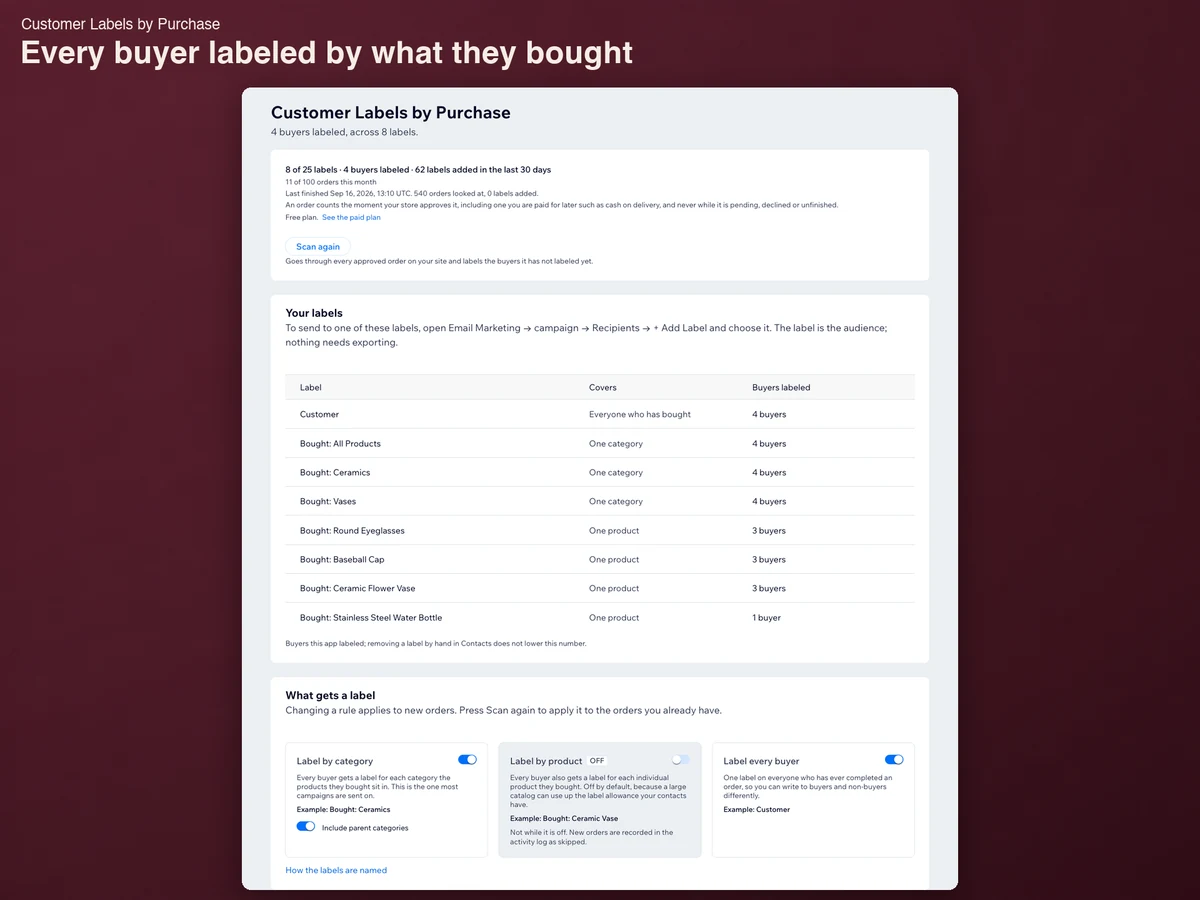
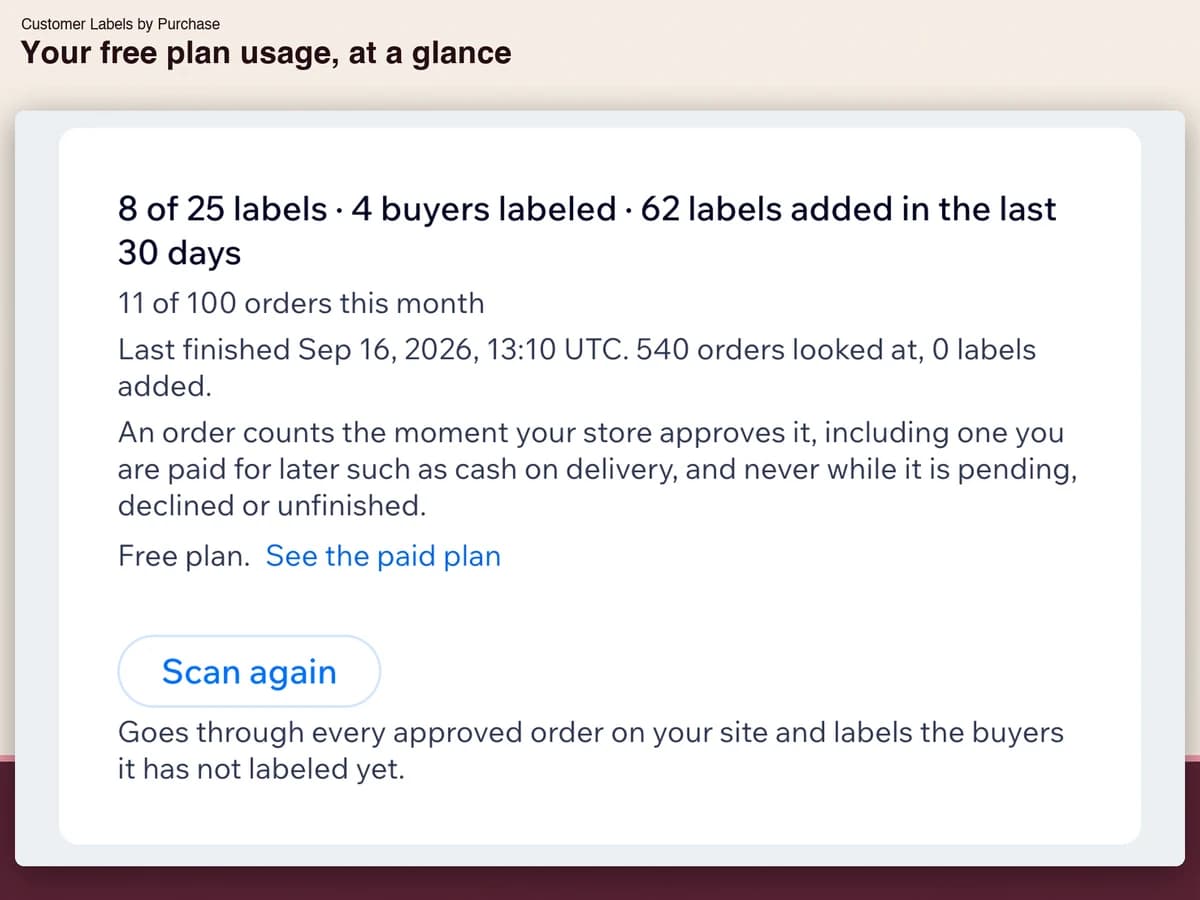
Nothing to set up and nothing to connect. The moment you install, it goes through every approved order the site already has and labels the buyer who placed it. On a test site with 525 orders that took 31 seconds. The home screen opens on the number of labels, the number of buyers carrying one, and what the last scan looked at. An order counts the moment your store approves it, including one you are paid for later such as cash on delivery, and never while it is pending, declined or unfinished.
Choose what gets a label
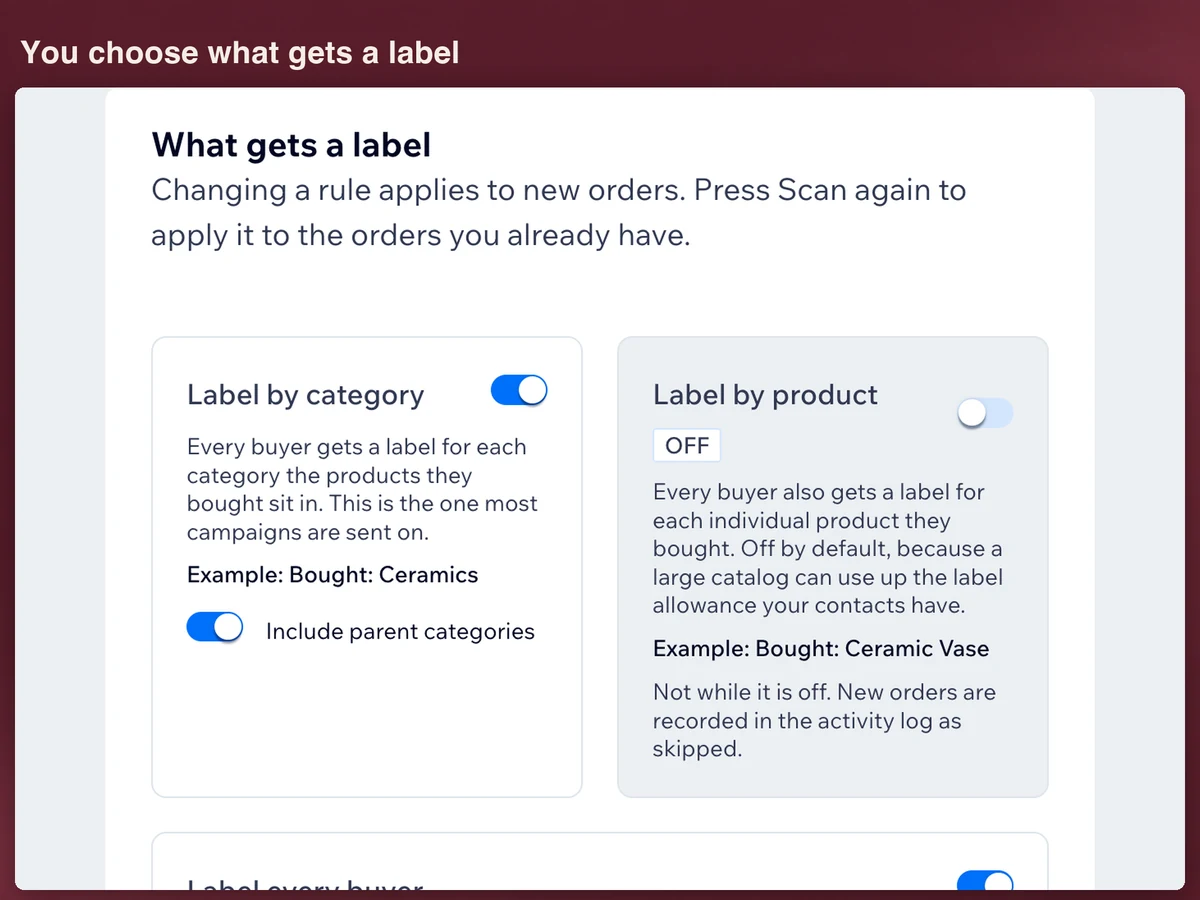
There are three rules. Label by category starts on: every buyer gets a label for each category the products they bought sit in, such as Bought: Ceramics. Include parent categories starts on with it, so a mug also picks up the category the mugs sit inside. Label every buyer starts on too, and puts one Customer label on anyone who has completed an order. Label by product starts off, because one label per product adds up fast and your contacts have a limit on how many labels they can hold; switch it on and each product gets its own, such as Bought: Ceramic Vase. Changing a rule applies to new orders, and Scan again applies it to the orders you already have.
Send a campaign to one of the labels
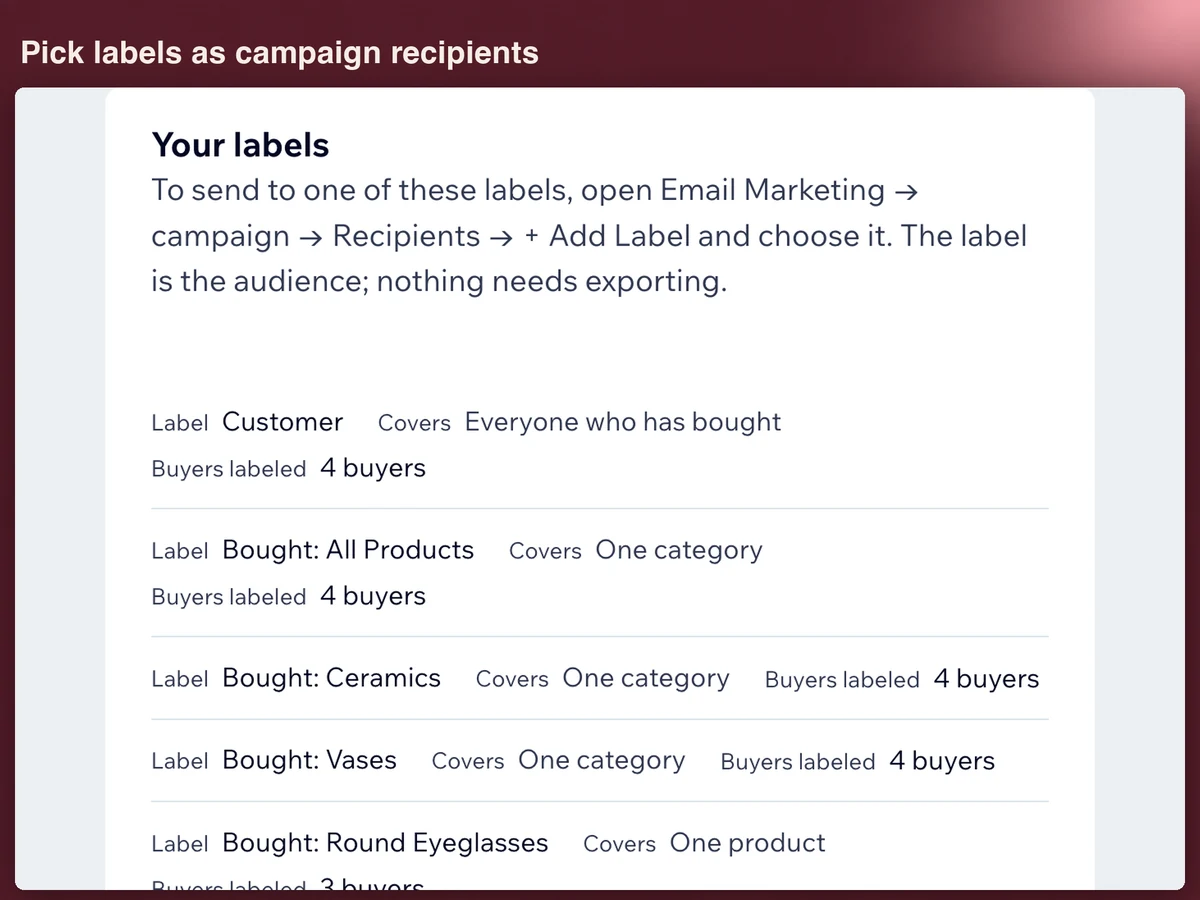
Open Email Marketing → campaign → Recipients → + Add Label and choose it. There is nothing to export and nothing to import. These are ordinary contact labels: they show on each contact, and anything else that reads labels can use them. The app's own list puts each label beside what it covers, a product or a category, and the number of buyers it has put that label on.
What the activity log shows
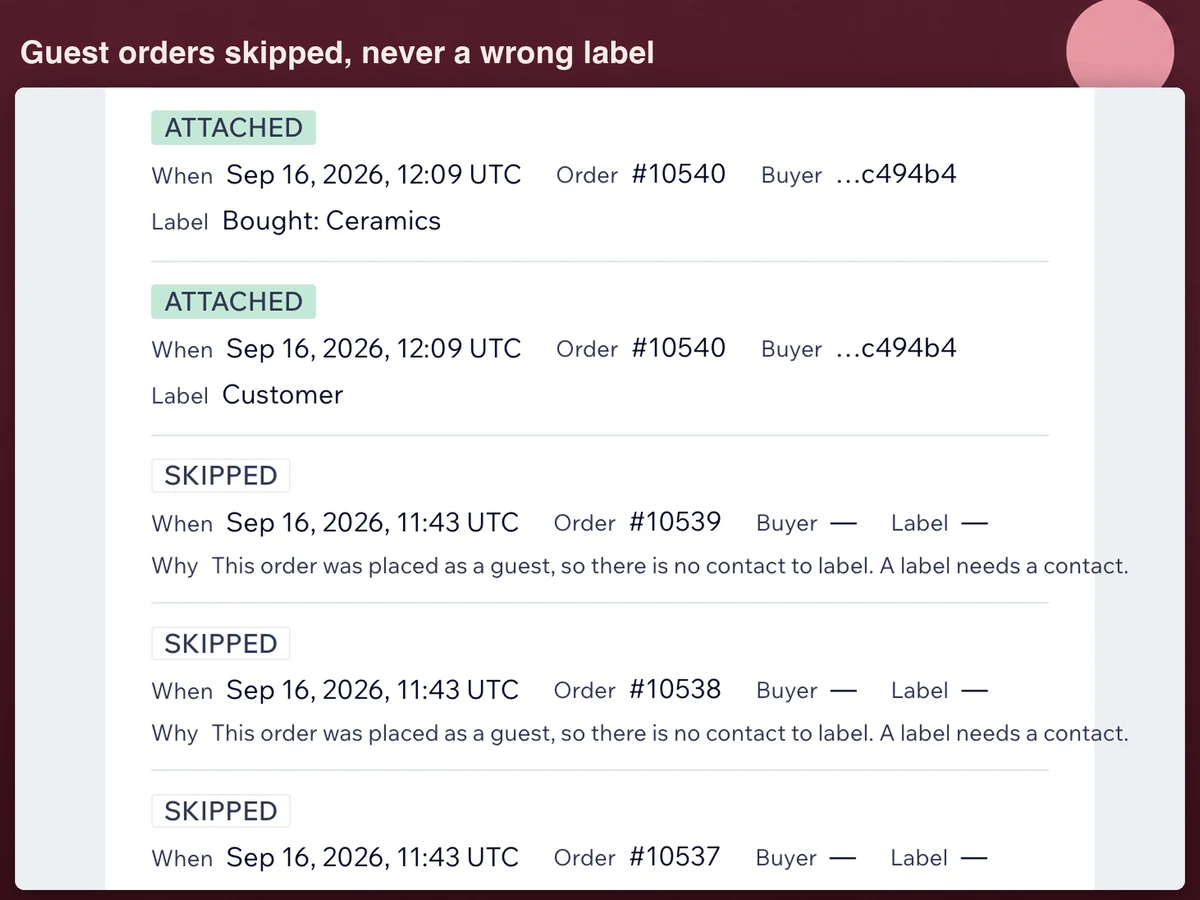
Every decision the app makes is a row: attached, skipped or failed, with the time, the order number, the last six characters of the buyer's contact and the label.
A skipped row carries its reason written out. The most common one is an order placed without an account: there is no contact on it, so there is nothing to label. Those orders stay in the log rather than disappearing, which is where the gap between orders and labeled buyers is explained.
Failed means the site refused the change after four tries. Press Try again on the row. The same label is never put on twice, so a rescan and a retry both cost you nothing.
A label you take off a contact by hand stays off. Scan again does not put it back, and neither does that buyer's next order. This app labels a buyer once and then leaves them alone, so what is on your contacts is what you decided.
What it costs, and what it will not do
Free covers 25 labels and 100 orders a month, both counted for you on the home screen. Past either limit, new orders are recorded as skipped and get no label, and nothing is charged automatically. Upgrade, press Scan again, and every order that was skipped is labeled.
Standard is $2.99 a month, or $2.24 a month billed yearly, with a 14-day free trial.
The limits are deliberate. The app sends no email, creates no segments, and changes nothing in your catalog or your orders; the only thing it reads is your store orders. It stores order ids and numbers, contact ids, label names and times, never a name, an email address, an address or a payment detail. Log rows are deleted after 90 days, and removing the app leaves every label where it is, on your contacts.
Frequently asked questions
What does it cost?
Free covers 25 labels and 100 orders a month. Standard is $2.99 a month, or $2.24 a month billed yearly, with a 14-day free trial. Billing runs through the App Market.
Do the customers I already have get labeled?
Yes. The scan runs once by itself at install, and Scan again runs it whenever you want after that. It carries on from where it stopped and never counts an order it has already decided about, so a rescan does not eat into the free allowance.
What happens to orders placed without an account?
There is no contact on them, so they are skipped and the reason is written in the log. If the same person later buys with an account, that order labels them normally.
I renamed a product. Does its label change?
No. A label keeps the name it was made with, on purpose: the name is what a campaign points at, and renaming it would quietly change who an email goes to.
What happens to the labels if I remove the app?
They stay on your contacts. They are yours, and they are the reason you installed it; delete them from your contacts if you want them gone. What is deleted is what we stored: the activity log, your rules and the counts.
Can I get a refund?
Cancel during the trial and nothing is charged. After a charge, write within 14 days of it and we refund it in full. A yearly plan canceled part way through is refunded for the whole months remaining. Cancel later and the app runs to the end of the period you paid for, then falls back to the free plan.
See Customer Labels by Purchase on the Wix App Market
See Customer Labels by Purchase on the Wix App Market