
Print pick lists and packing slips for Wix orders in bulk
Packing day has a shape. Read the list, open an order, print its slip, go back, open the next one. Forty orders is forty round trips, and the count of what to pull off the shelves lives on a sticky note.
Here is what the Wix orders list already does for a selection, then five steps that turn today's orders into one pick list, one file of packing slips and a finished fulfillment run.
Where printing one order at a time starts to hurt
The slip is the easy part. Around it sits the work: deciding which orders go out today, counting how many of each product that means, then repeating the same six clicks until the list is empty.
So people improvise. Export to a spreadsheet and count by hand. Print every unfulfilled order and sort the paper into piles. Pick off the screen, walking back to the desk between items. It all works, and it all costs the same hour every day, until an order gets printed twice or missed.
What the Wix orders list already does
Start with what is there, because many packing days need nothing more. In the Orders tab you can click Filter and select one or more filters, filter by tag if you tag your orders, and, as a store owner, filter by delivery region and rule.
Tick several orders and a row of bulk actions appears. Wix documents them: Assign Tags, Export to a .CSV file, Print Orders, Print Shipping Label through Wix Shipping ("not available in all regions") and Mark as fulfilled, with Mark as paid, Create invoice and Archive under More Actions. Marking a batch fulfilled is built in.
Two repay a closer read. Print Orders sends the selected orders to your printer, and that is the order, not a packing slip; the slip is a separate path through More Actions, one order at a time. Tracking is the same story: Wix states plainly that "You cannot add tracking numbers to multiple store orders at once." Nothing in the documented actions counts up what to pull off the shelves, either.
Five steps from today's orders to a finished run
PickPack is our app: one page in your dashboard that opens on the orders still waiting, with nothing to connect and nothing to configure before the first print.
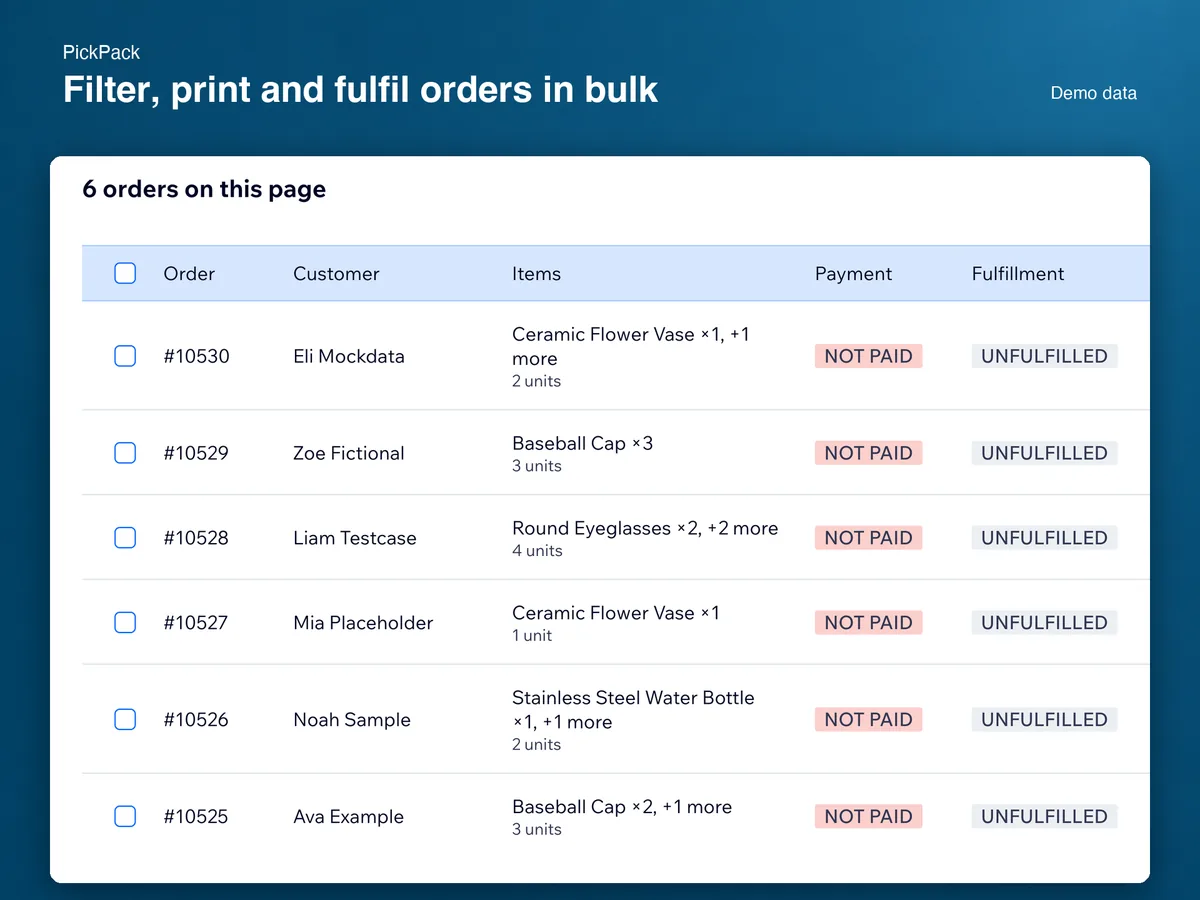
Open it on your unfulfilled orders
Install from the App Market and open PickPack from your dashboard. It lists the orders still waiting, a hundred at a time, with the customer, the items and the status on each row. No account to create, no sync to wait for.
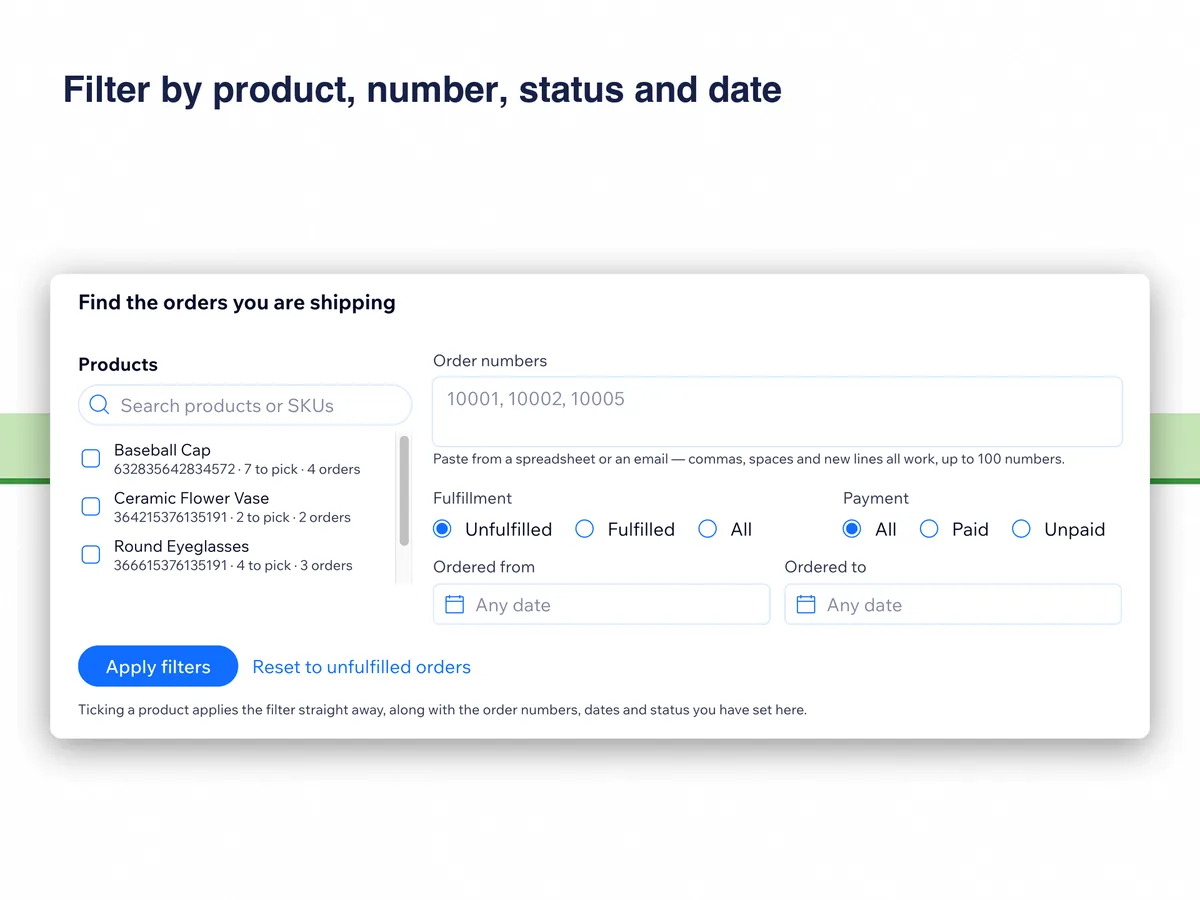
Narrow the list to today's picking
Tick the products you are shipping, searching by name or SKU; ticking one applies the filter straight away. Or paste a column of order numbers from a spreadsheet or an email. Fulfillment status, payment status and a date range sit beside them, behind Apply filters.
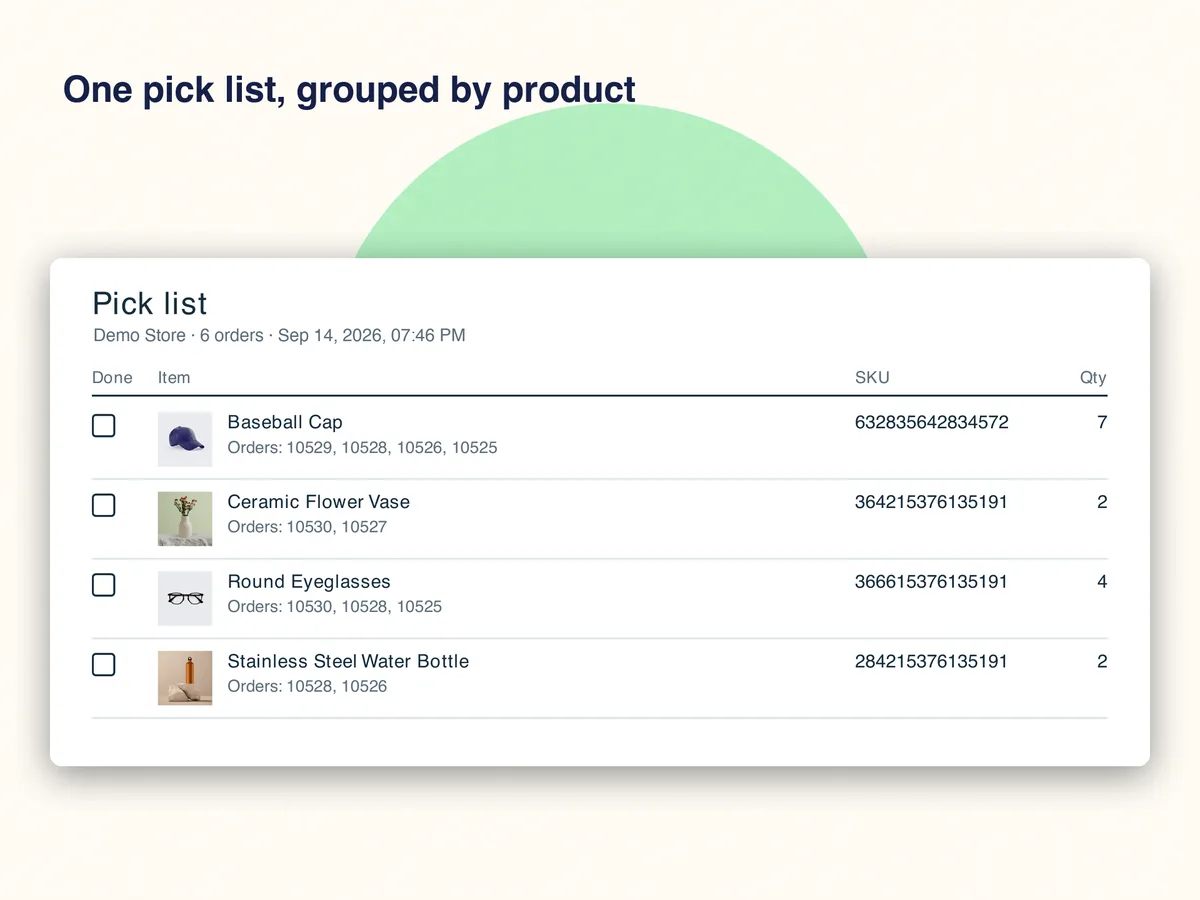
Print the pick list
Select the page with the header checkbox, or choose Select all orders matching this filter to take every match, later pages included. Print pick list opens a PDF grouped by product and variant: the quantity to pull, the order numbers it covers and a checkbox on every line.
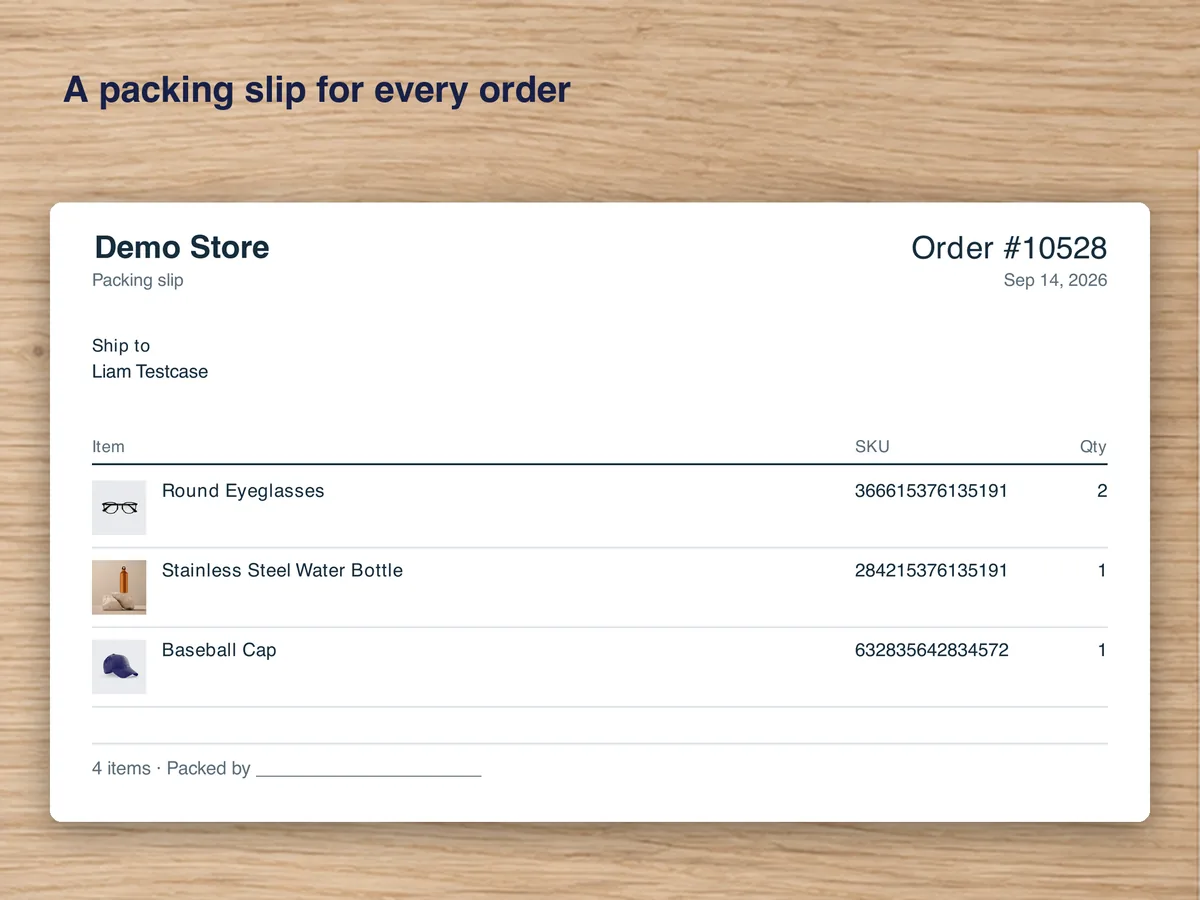
Print the packing slips
Print packing slips gives you one PDF with each order starting on its own page. The options panel holds photo size, A4 or Letter, whether to include the checkout fields the buyer filled in and the buyer's note, and a logo; without one the slips carry your store name.
Mark the same orders fulfilled
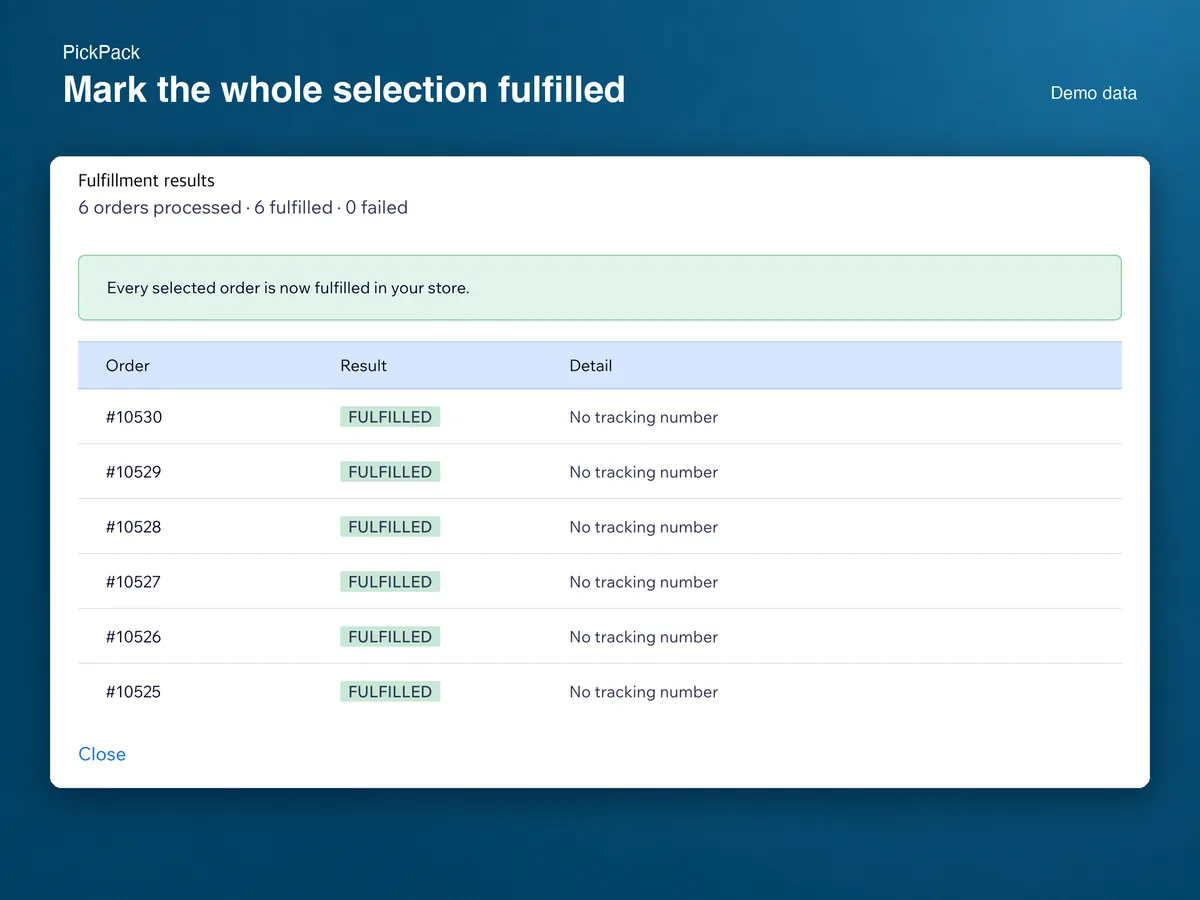
Mark fulfilled sends that selection in batches of a hundred, up to five hundred orders in one run. The results table shows every order as Fulfilled or Failed with a reason, and Retry failed only re-sends exactly those. Orders your store had already fulfilled are reported and left alone. A tracking number goes on when a single order is selected.
Tips, and what the app will not do
Right after a run the store's order search takes a moment to catch up, so PickPack hides the orders you just fulfilled and says how many. If the store answers with too many requests, the app retries three times over a few seconds, then stops and tells you nothing was sent, keeping your filter and your selection behind a Retry button.
Orders created by hand in the dashboard often have no buyer and no address. They print anyway, with "No customer" where the address would be. Checkout fields only exist on orders placed after you added the field, so older orders show none. Print history keeps every run, so you can print the same orders again or reopen yesterday's filter.
The limits are deliberate. PickPack does not buy or print shipping labels, connect a carrier account, quote rates or track shipments, and it does not manage inventory, scan barcodes, create invoices or edit orders. Buyer details and the PDFs it renders are not kept in its database.
Frequently asked questions
What does it cost?
Twenty fulfilled orders a month are free, on a UTC calendar month that starts again on the first. Above that, the Standard plan is $4.99 a month, or $4.16 a month billed yearly, with a 14-day trial. Printing is not metered on either plan.
What happens when the free orders run out?
Pick lists and packing slips keep printing; only marking orders fulfilled inside the app waits. A selection larger than what is left sends the orders that fit, and the rest come back on the results table saying why. You can mark those fulfilled in your own dashboard, or upgrade and the next one goes straight away.
Can I get a refund?
Cancel during the trial and nothing is charged. After a charge, ask within 14 days of it and we refund it in full. Cancelling later stops the next charge and the plan runs to the end of the paid period; on a yearly plan, unused whole months are refunded when you ask. We file the refund and the app market processes it: up to three business days to approve, up to twenty for the money to arrive.
What about orders that are only half shipped?
A partially fulfilled order stays in the default list beside the unfulfilled ones, and a run sends what is left rather than the quantities already gone. Fully fulfilled orders are skipped and reported, never sent twice. Tracking numbers still go on one order at a time, which is the store's own limit.
See PickPack on the Wix App Market
See PickPack on the Wix App Market